Set an assignment and collect submissions
Assignments are the everyday graded work on a course: an essay, a problem set, a project, a lab report. Learniq tracks the brief, every submission, and the grade.
Goal
By the end you will have published an assignment, seen learners submit to it, and graded at least one submission.
Prerequisites
- The course exists and has enrolments (see Create a course and Enrol students).
- You have a Rubric or Grade scale to grade against, or you accept Learniq's default Numeric 0–100 scale.
Steps
-
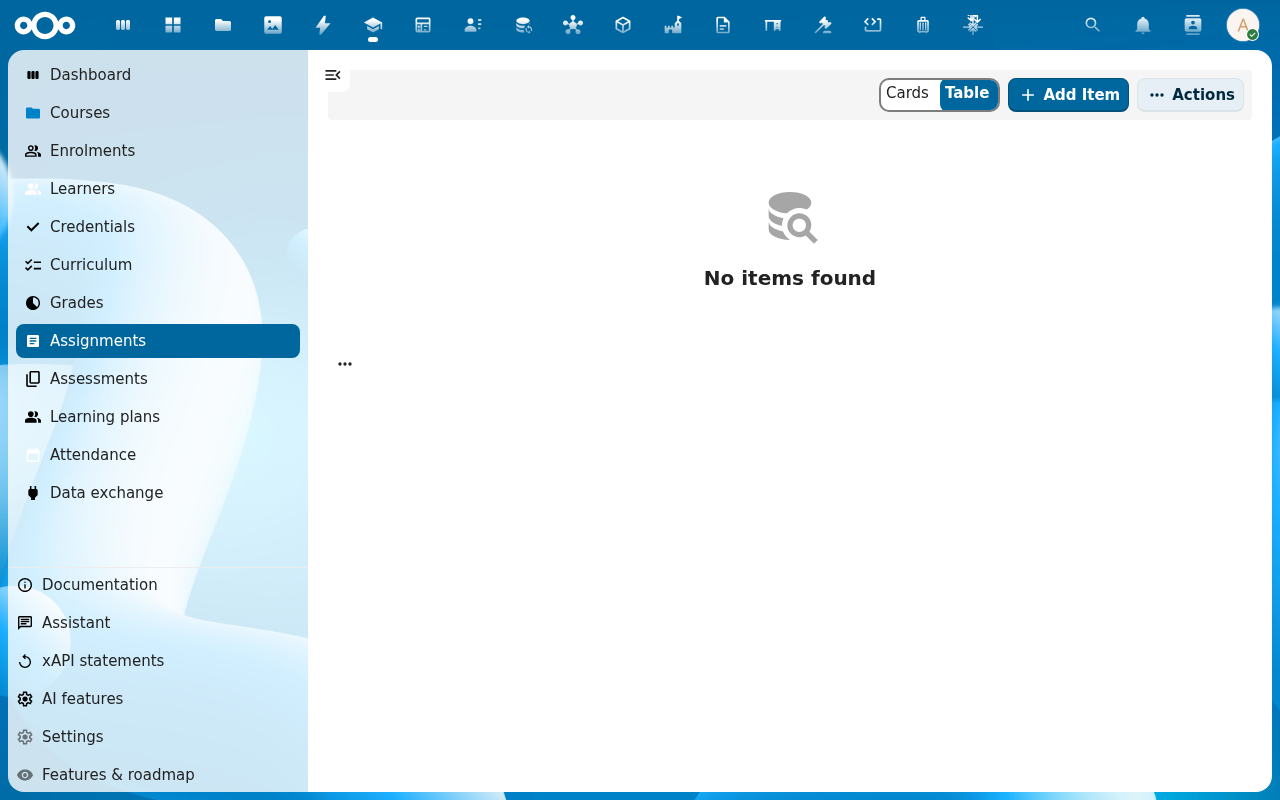
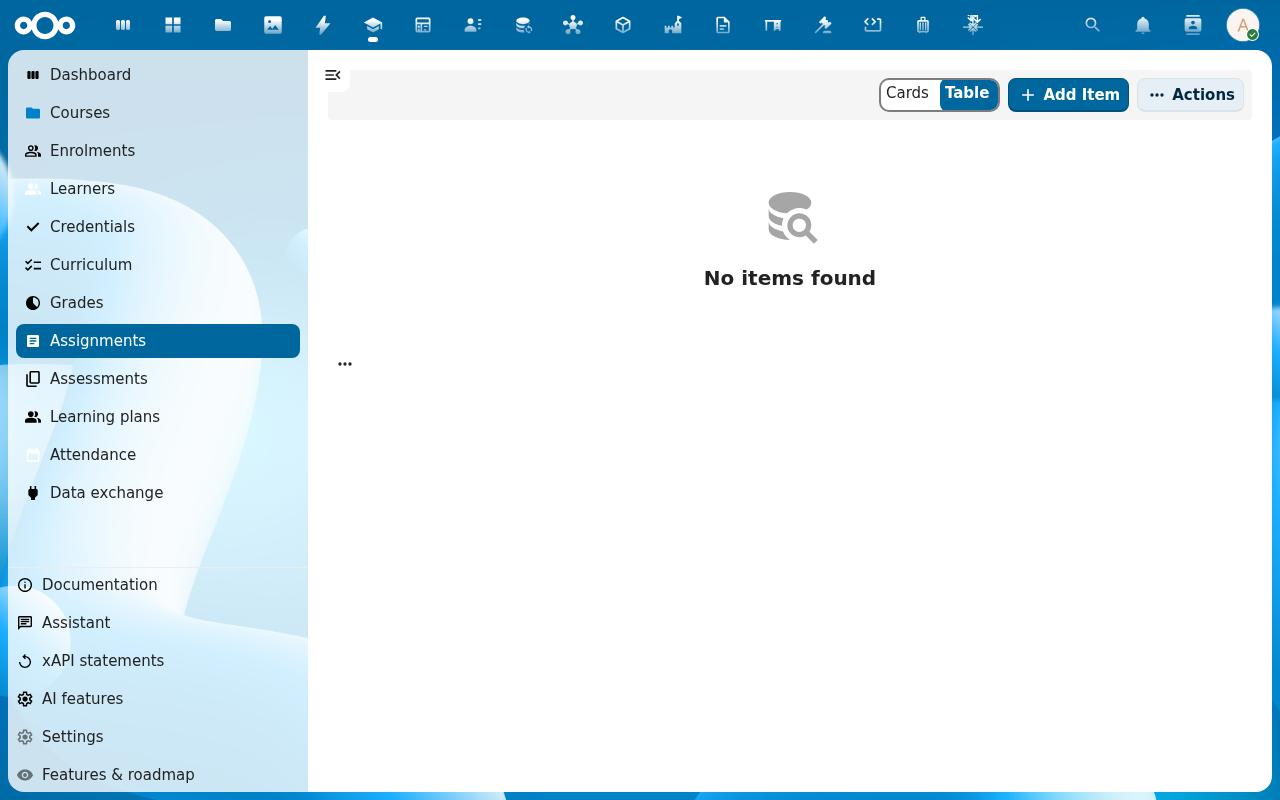
Open Learniq and click Assignments in the left navigation. The list view shows every assignment across every course you teach.
-
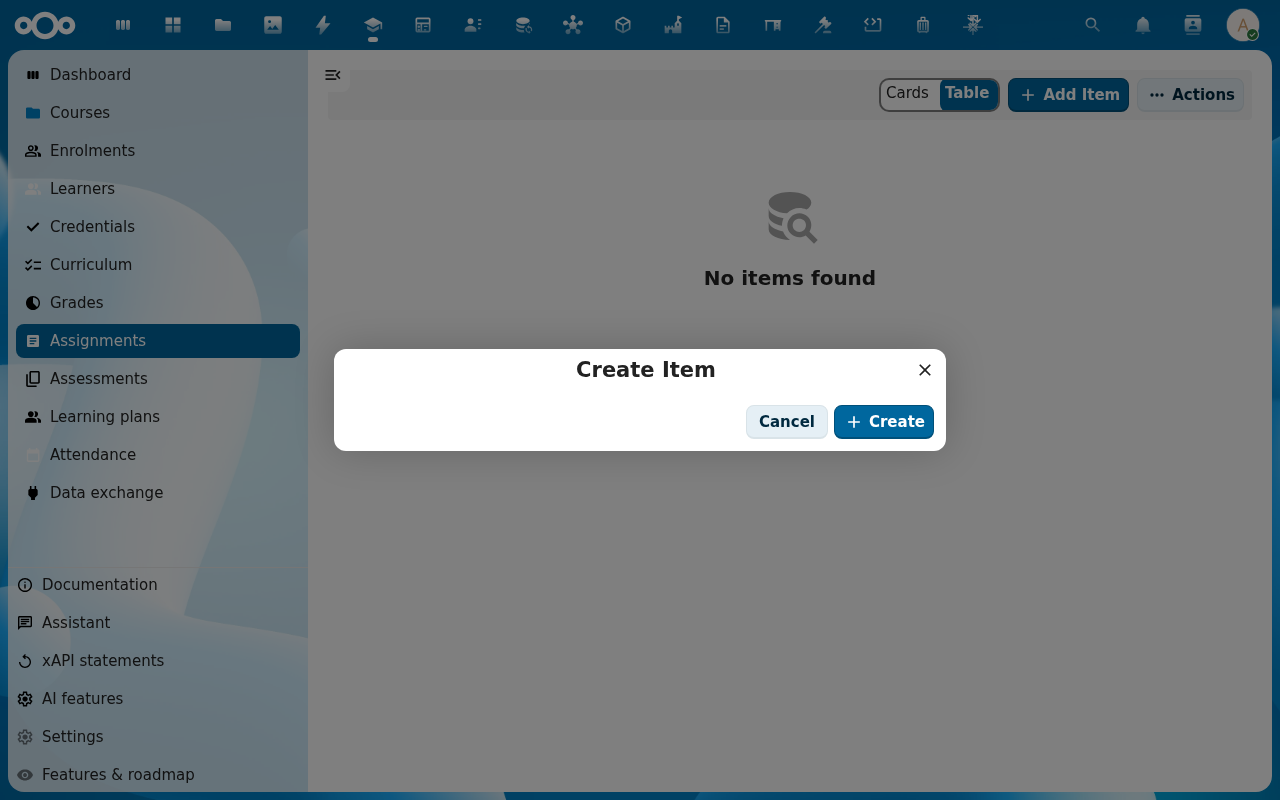
Click Add Item. The new-assignment dialog opens, fill in Title, Brief (markdown), Due date, Max grade and pick a Rubric if you have one. Pick the Course the assignment belongs to.
-
Click Save. The assignment shows up in the Assignments list and on each enrolled learner's home view. Learners submit via Submit work on their assignment view.
-
As submissions come in, click the assignment row and switch to the Submissions tab. Each row shows the learner, when they submitted, and the current grade status (pending, graded, returned).
-
Click a submission to open it. The grading view shows the submitted work, the rubric criteria (if any), a grade input and a feedback field. Fill them in and click Save grade.
Verification
The assignment cycle is complete when: the submission's status moves from pending to graded (or returned), the learner sees the grade and feedback on their home view, and the grade appears under the course's Grades tab.
Hand in through the portal
Pupils without a Nextcloud account can hand in from the school portal (the portaliq app). They pick Hand in an assignment, fill in the assignment and attach their files: PDF, Word, OpenDocument, PowerPoint or an image, up to 20 MB each.
- Learniq fills in who handed in and which school it belongs to. The pupil cannot choose another pupil.
- The hand-in shows up in the assignment's submissions list as a draft, with its files.
- The pupil then hands the draft in from My submissions with Hand in. The same rules apply as in the app: before the deadline it is handed in, after the deadline it is handed in late only when the assignment accepts late work, and otherwise the pupil reads that the deadline has passed.
- A requested resubmission uses its own date, as in the app.
- A pupil can only hand in their own work, and only once.
- My submissions in the portal lists only the pupil's own work.
Double marking
For a thesis, a final project or PTA work you can let two to five markers mark each hand-in on their own.
- Open the assignment, edit it and set Markers per submission to 2 or more. Choose a Final grade rule: agreed by hand, the average of the marks, or the highest mark.
- On the assignment, choose Allocate markers in the actions menu. Pick the markers and leave the hand-in empty to allocate them to every hand-in, or pick one hand-in.
- Each marker opens the hand-in's marking screen, scores it and chooses Hand in my mark. A marker only sees the other marks after handing in their own.
- Once every mark is in, the marks show side by side. The final grade field starts at the average or the highest mark when you chose that rule, and is empty for agreed by hand. Check it and save: the hand-in is returned to the learner with that grade, as with single marking.
A marker's notes are for the teacher in charge and are never shown to the learner. A learner of a hand-in cannot be allocated as its marker.
Common issues
| Symptom | Fix |
|---|---|
| Learners say "I cannot find the assignment" | The assignment was saved with status Draft, open it and switch status to Published. |
| The grade input rejects your number | The value falls outside the Max grade you set on the assignment, or it does not match the rubric scale. |
| The rubric dropdown is empty | No rubrics exist yet, create one under Curriculum → Rubrics or use the default numeric scale. |
Reference
- Grade learners and publish final grades, converting submission grades into final course grades.
- Issue a certificate, once final grades are in.