Grade work and give feedback
Learniq splits grading into two layers. Grade entries capture each piece of marked work (an assignment, an assessment, a participation mark). Final grades are the published, signed result for the course, what shows up on the transcript and certificate.
Goal
By the end you will have viewed all the grade entries for one learner on one course, calculated a final grade against the course's grade scale, and published it.
Prerequisites
- Graded submissions on the course (see Set an assignment and collect submissions).
- A Grade scale picked on the course (default Numeric 0–100; alternatives live under Curriculum → Grade scales).
- The course is in status Closed or close to it, Learniq lets you publish final grades earlier, but the audit pack flags grades signed against an open course.
Steps
-
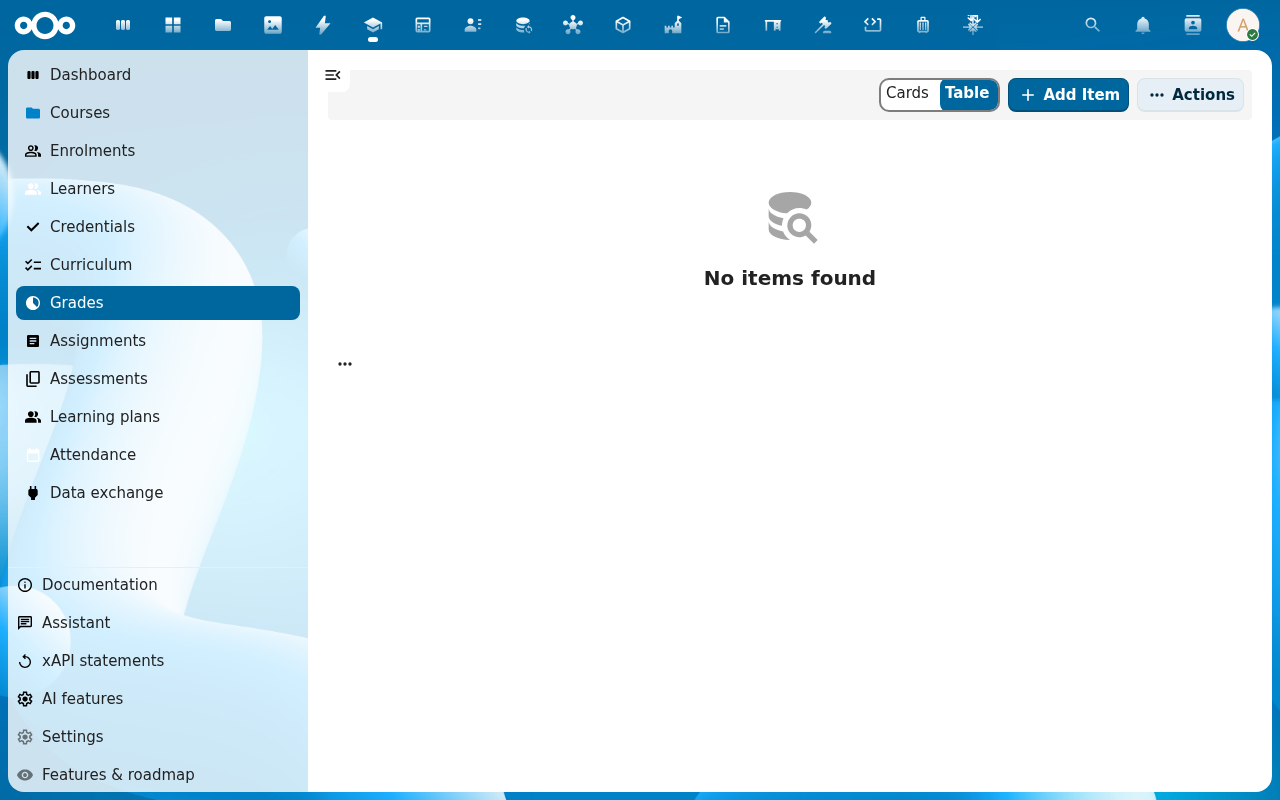
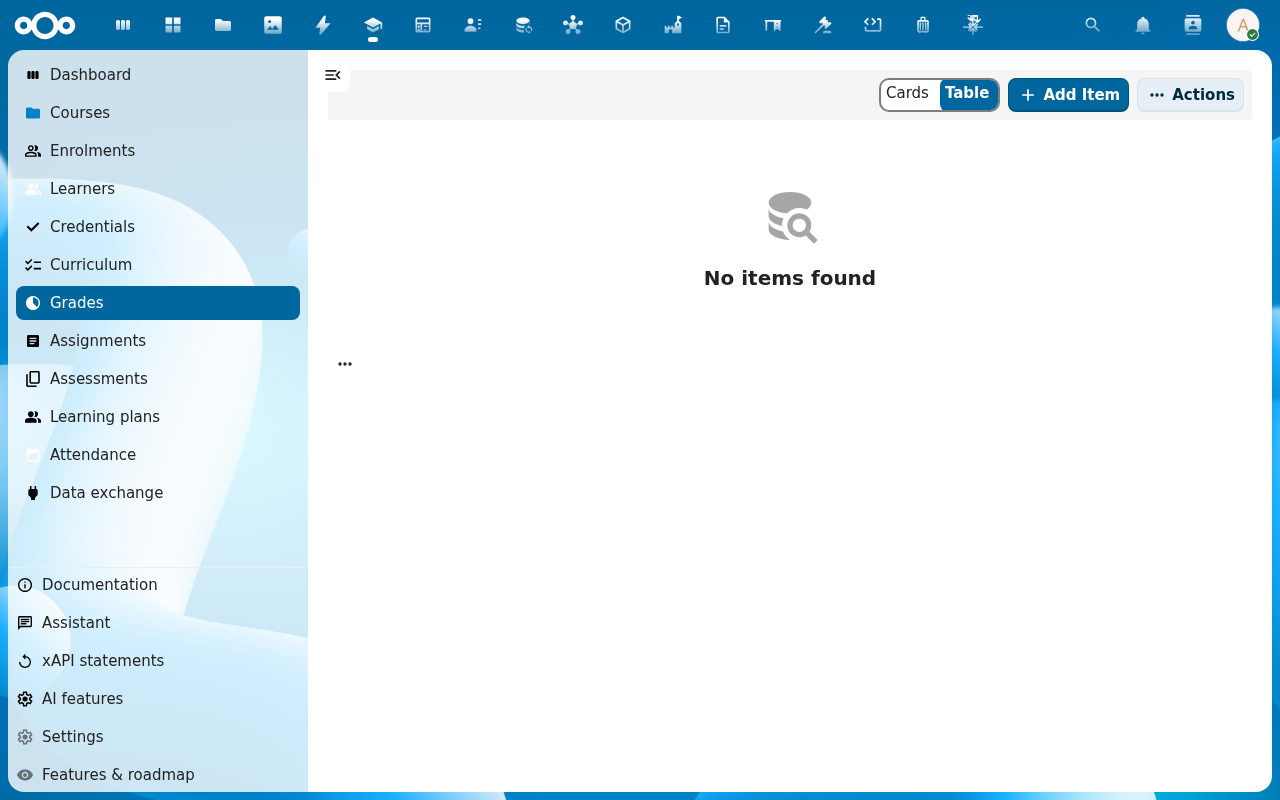
Click Grades in the left navigation. The list shows every grade entry across every course, filterable by course, learner and date.
-
Filter to your course. Each row is a single entry: assignment grade, assessment grade, participation mark. The Weight column shows how much it counts toward the final grade.
-
Open one entry to see the breakdown, the rubric criteria, the comment you wrote when marking, and the audit trail.
-
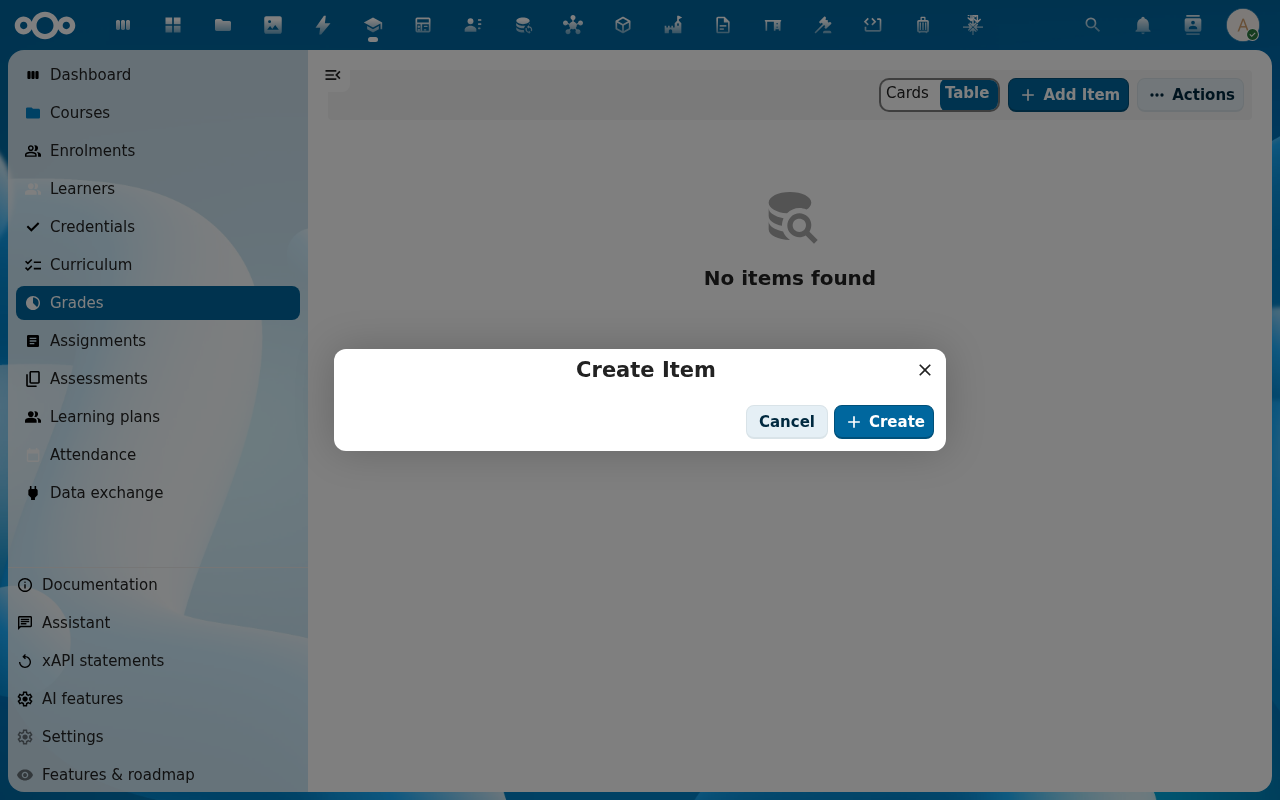
Switch to Final grades (in the same Grades section). Click Add Item and pick the Course and Learner. Learniq pre-fills the calculated grade from the weighted average of the learner's entries; override it if needed and add a short reason.
-
Click Publish. The final grade lands on the learner's profile, on the course's Grades tab and in the course's compliance audit pack. Once published it is signed against the course's RS256 key, see Manage Learniq settings for key rotation.
Verification
The grade is published when: the Final grade row shows status Published with a signature timestamp, the learner sees it on their home view, and the course's Grades tab now lists one final grade per learner with no Pending rows.
Scheduled grade visibility
By default, a grade entry's notification fires the moment you publish it, day or night. A school can opt into a quieter pattern instead: open Curriculum → Curriculum plans, edit the plan, and set Grade visibility to Next school day with a time (for example 10:00) and timezone. Every grade entry published under that plan then resolves its own Visible from timestamp automatically — the next non-weekend day at that time, or later the same day if you publish before the cutoff. You can still override the timestamp for a single entry as part of the publish action if you need it to notify immediately.
While an entry is published but its visibility window hasn't opened yet, its lifecycle badge on the grade impact page reads Scheduled instead of Published, and no notification has gone out. Parents receive the same notification on the same schedule as the learner.
Each user can also set a personal quiet-hours window (for example 22:00–07:00) under Settings → Notifications, so Learniq notifications they'd otherwise receive during that window are deferred until it ends. Deadline reminders are declared with enough lead time that they still land before the deadline even after a quiet-hours deferral.
Tests in the portal
Pupils can also take a test in the school portal (the portaliq app), under My tests. The portal shows a test when it is published, the pupil is enrolled in its course or group, the test is open for them and they have an attempt left.
- The pupil answers one question at a time. Every answer is saved at once.
- The countdown includes extra time from an approved exam accommodation. When time is up, the test is handed in.
- A test with an access code asks for it in the portal too.
- One attempt per test, unless you allow more with Maximum attempts.
- Closed questions are scored when the pupil hands in. You score open questions as usual.
- The pupil sees the result only after you grade the attempt and publish the grade.
- A test with supervision settings (test mode or a proctoring provider) is not offered in the portal. Pupils take it in the app.
Common issues
| Symptom | Fix |
|---|---|
| The calculated grade is blank | Some grade entries on the course have no Weight, open Curriculum → Grade scales and set the default weight, or set the weight per-assignment. |
| "Signing key not configured" on publish | An admin still needs to generate the RS256 key, go to Manage Learniq settings → Credential Signing → Rotate signing key. |
| You need to amend a published final grade | Open the row and click Amend, Learniq creates a new signed version and keeps the old one with status Superseded. |
Reference
- Issue a certificate, turns the final grade into a verifiable credential.
- Compliance audit pack, how published grades feed the audit report.