Enrol students in a course
Enrolments link a learner to a course for a defined time window. Without an enrolment, a student cannot submit assignments, sit assessments, mark attendance or be issued a certificate.
Goal
By the end you will have one or more enrolments on the course, each tied to a learner profile, with status Active and a valid date range.
Prerequisites
- The course exists (see Create a course) and is in status Open.
- The learners exist as Learner Profiles in Learniq. If they do not, an admin (or a teacher with the Coordinator role) creates them under Learners → Add Item, or imports them with the SIS exchange job.
- For bulk enrolment from a cohort: the cohort exists and has members. See Define your school structure.
Steps
-
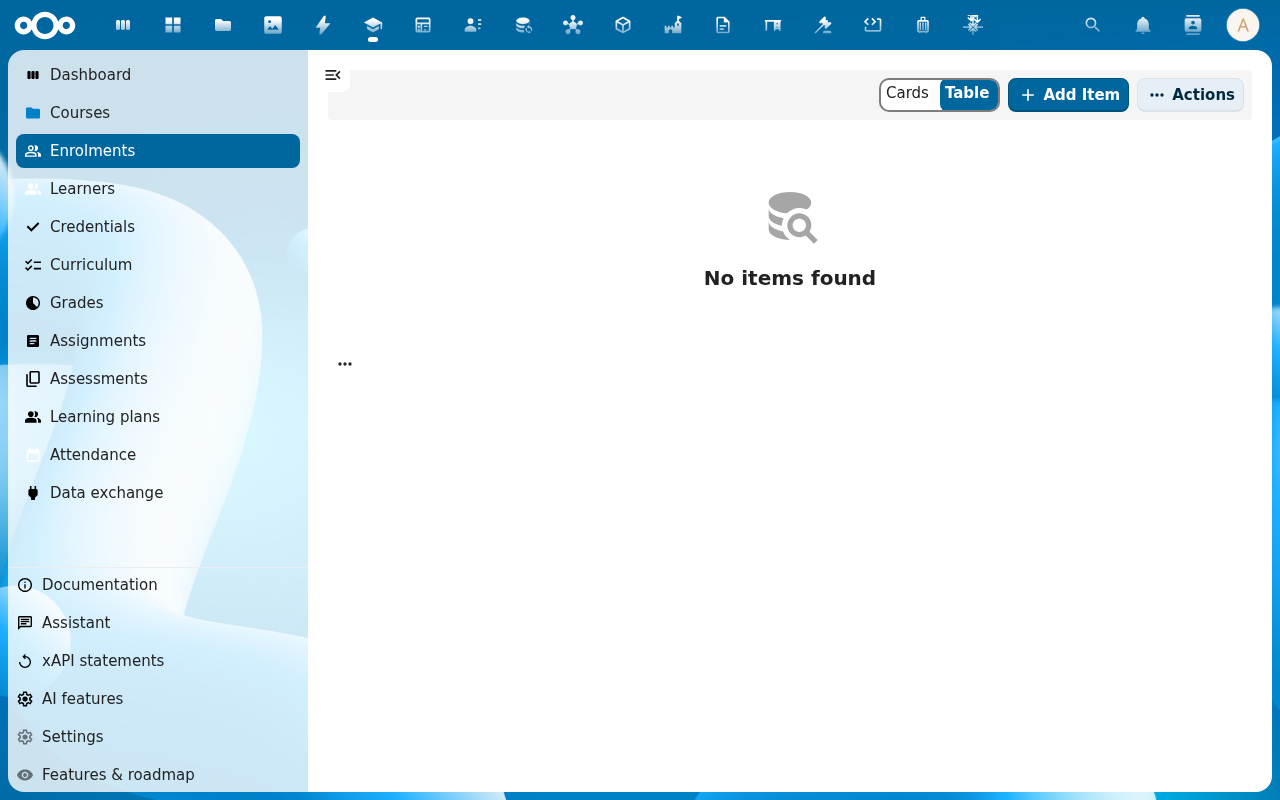
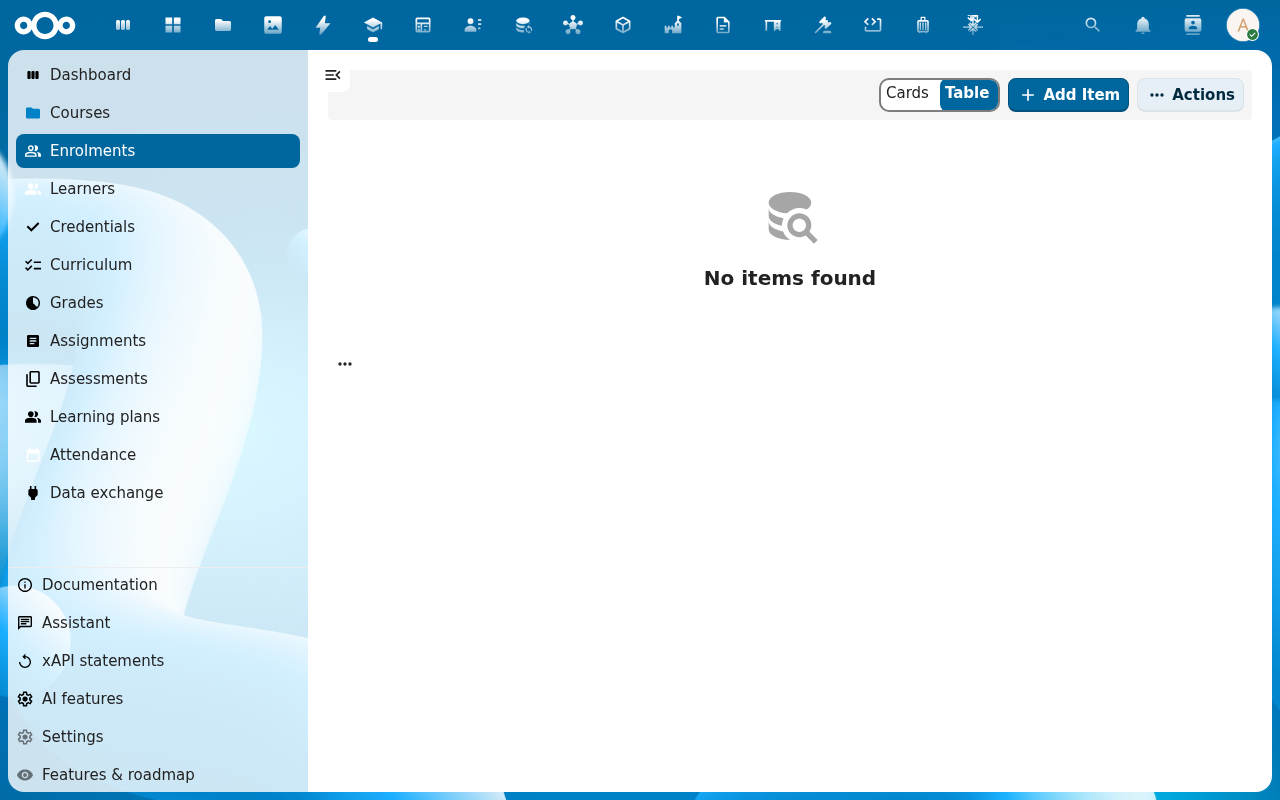
Open Learniq and click Enrolments in the left navigation.
-
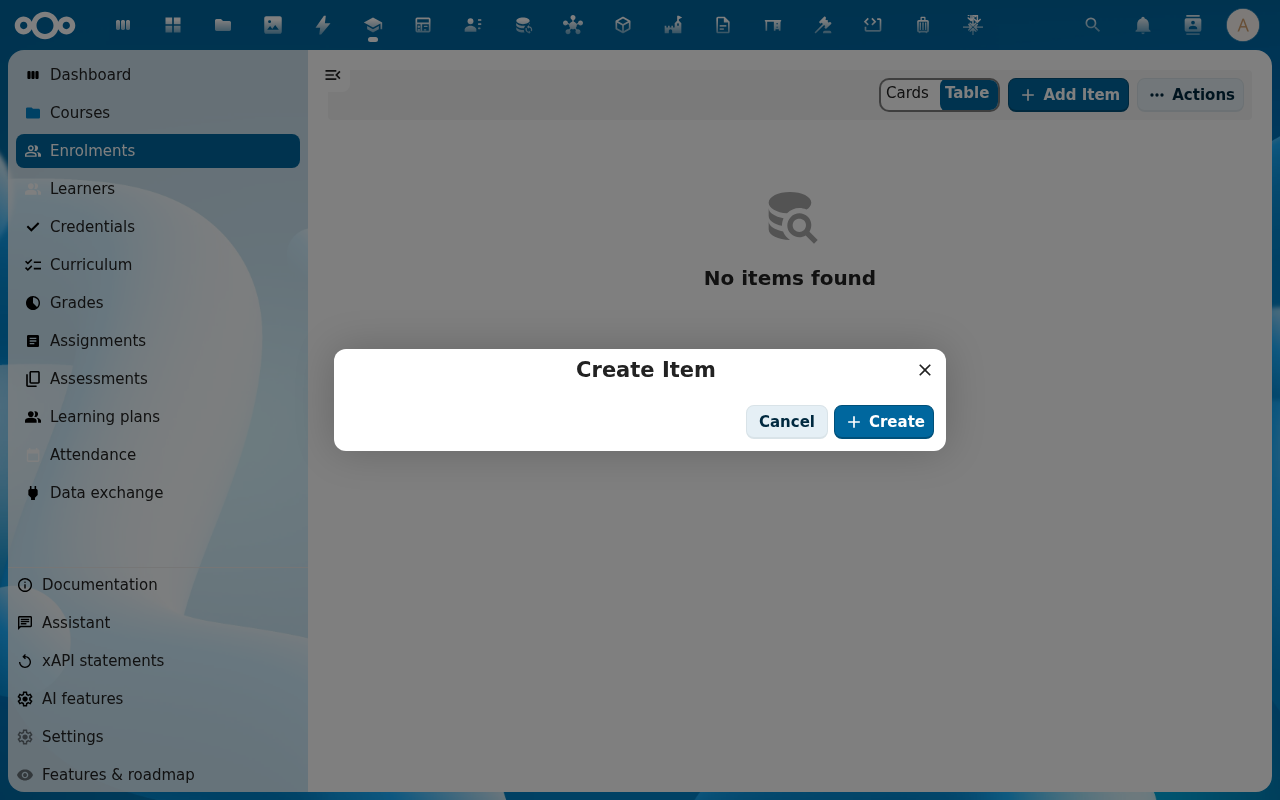
Click Add Item to enrol one learner at a time. Pick the Course, pick the Learner, set the Start and (optionally) End date and leave Status on Active.
-
For a whole class at once, open the course detail page and switch to the Enrolments tab. The toolbar shows Bulk enrol, click it to pick a cohort or paste a CSV of learner identifiers.
-
Review the preview. Learniq shows one row per learner the bulk operation will create or update, with a status badge (new, already enrolled, unknown learner). Untick rows you want to skip.
-
Click Confirm. The dialog closes; the Enrolments tab fills with the new rows, each with the learner name, status and date window.
Verification
The enrolments are good when: the course's Enrolments tab shows the learners with status Active, and those learners can see the course in their own learner-home view.
Common issues
| Symptom | Fix |
|---|---|
| Bulk enrol says unknown learner for every row | The CSV does not match a stable learner identifier, use the Learner ID column from the Learners list, not the display name. |
| The same learner appears enrolled twice | Two enrolments with overlapping date windows are allowed (one per cohort, for example). Close the older one by setting an end date if that was not intentional. |
| "Course is not open for enrolment" | The course is in Draft or Closed status, set it back to Open on the course detail page. |
Let learners sign up themselves
Learners can also sign up from the Course catalogue under My learning.
- Open a published course or programme, edit it and set Sign-up by learners to Open (the learner is in at once) or On request (a teacher, HR officer, team lead or the learner's manager approves). Every course starts Closed.
- The course now shows in the catalogue, with search and filters on level, language, subject and provider. Signing up for a programme enrols the learner in each of its courses.
- Requests for a course On request wait under Sign-up requests. Open one and choose Approve, or Decline with a reason the learner sees. The learner gets a notification either way.
- A learner can withdraw their own sign-up while they have made no progress. An enrolment you made yourself cannot be withdrawn by the learner.
Prerequisites still apply: a learner who has not finished a required course is told which one. Courses an outside provider brings in arrive as drafts; find them with Imported, not yet published on the course list and publish the ones your school offers.
Work groups that learners join themselves
For project work you can split a class into work groups that learners join themselves.
- Open the class and go to Work groups. Add a group for each team: the same Set for groups made together (for example Project campagne periode 2), a Name, a Maximum members and Sign-up open until. Leave the date empty to place learners yourself.
- Learners open My work groups in learniq, or the portal, and see each group with its free places. They join a group with a free place, move to another group of the same set, or leave, until the date. A full group takes nobody more.
- You can move a learner at any time by editing the group's members, and close sign-up early with Close.
- On a group assignment, set Work group set to the set. When one member hands in, the hand-in names the whole group.
Reference
- Track learner progress, what the learner sees once they are enrolled.
- Define your school structure, cohorts make bulk enrolment one click.