Create a course
Courses are the unit Learniq plans, teaches and grades against. Everything else, enrolments, assignments, assessments, attendance, certificates, hangs off a course.
Goal
By the end you will have a course in the Courses list with a title, a description and a date range, ready for the next step: enrolling students.
Prerequisites
- You completed Open Learniq for the first time.
- Your account has the role Teacher or Coordinator (an admin sets this in Manage Learniq settings).
- A programme to attach the course to (optional, courses can stand alone, but they slot more cleanly into reports when they sit under a programme). See Define your school structure.
Steps
-
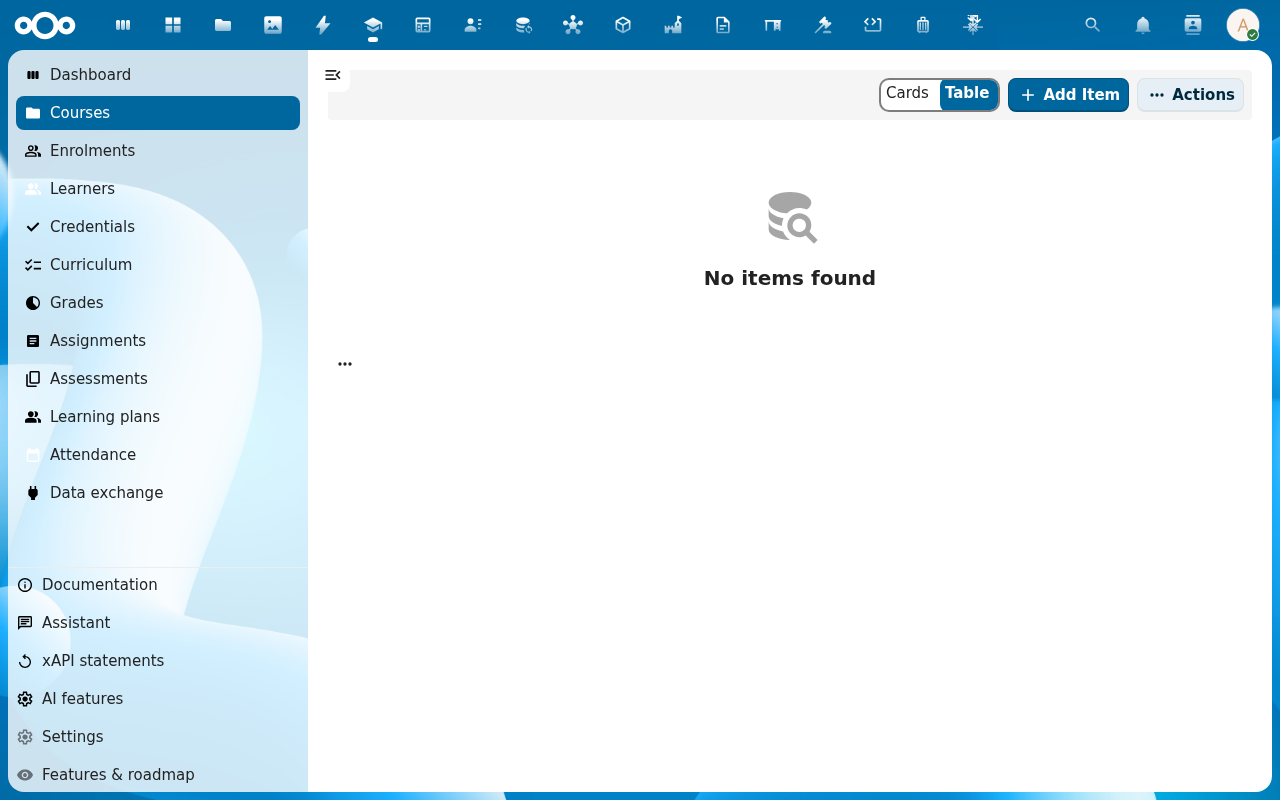
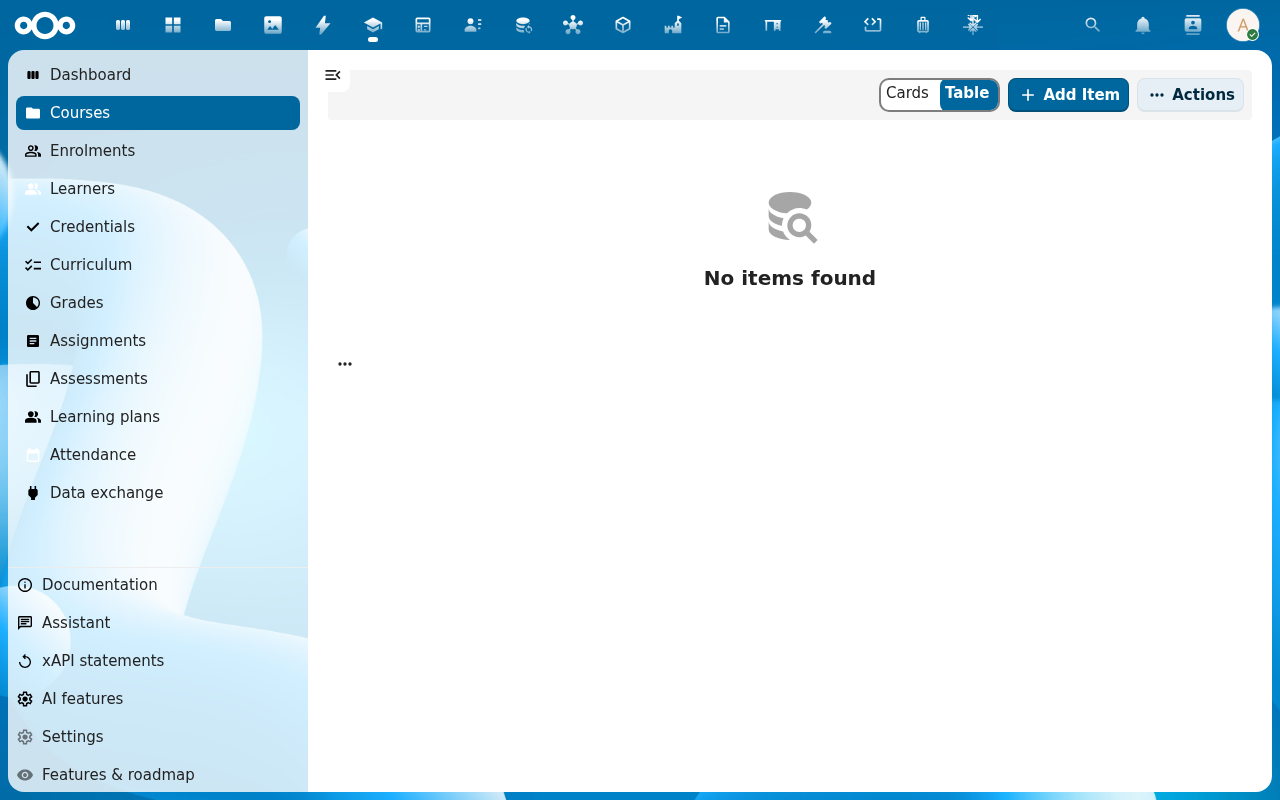
Open Learniq and click Courses in the left navigation.
-
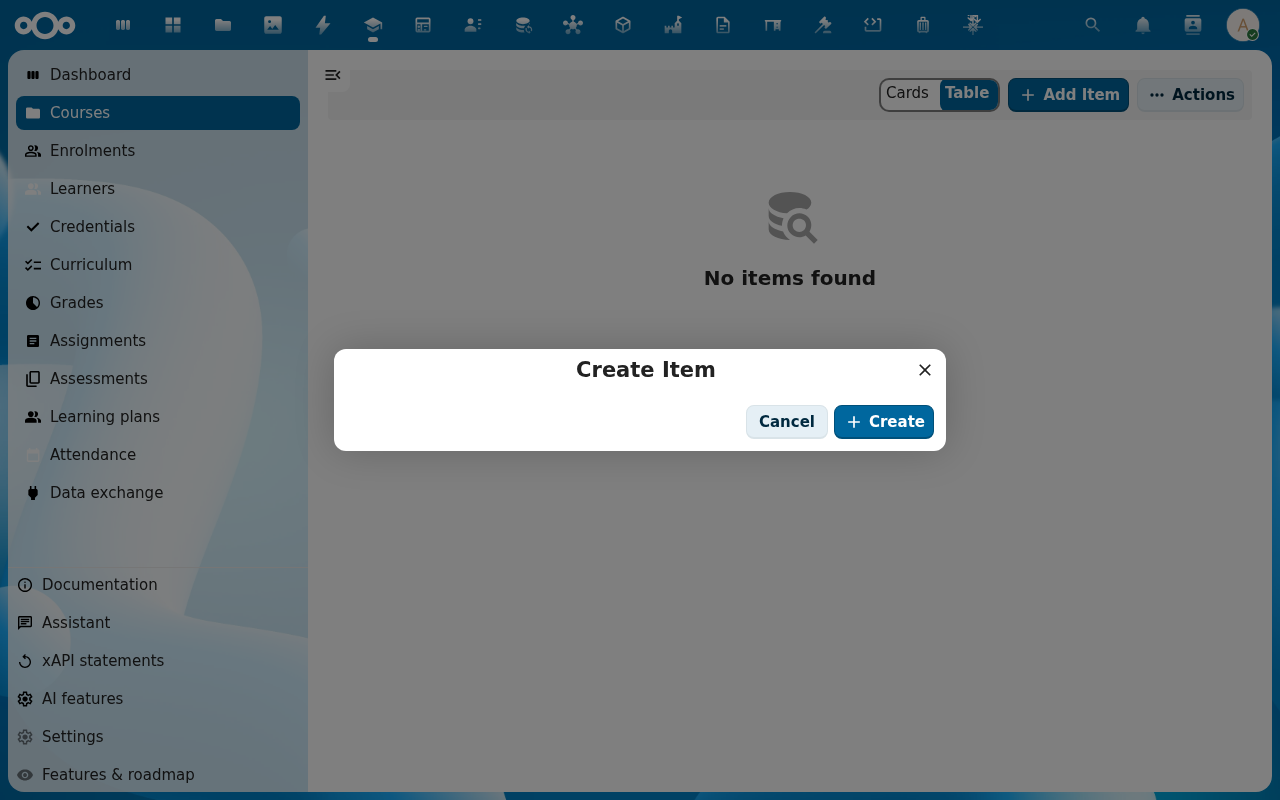
Click Add Item. A dialog opens showing the course schema fields (title, code, description, programme, start, end, status).
-
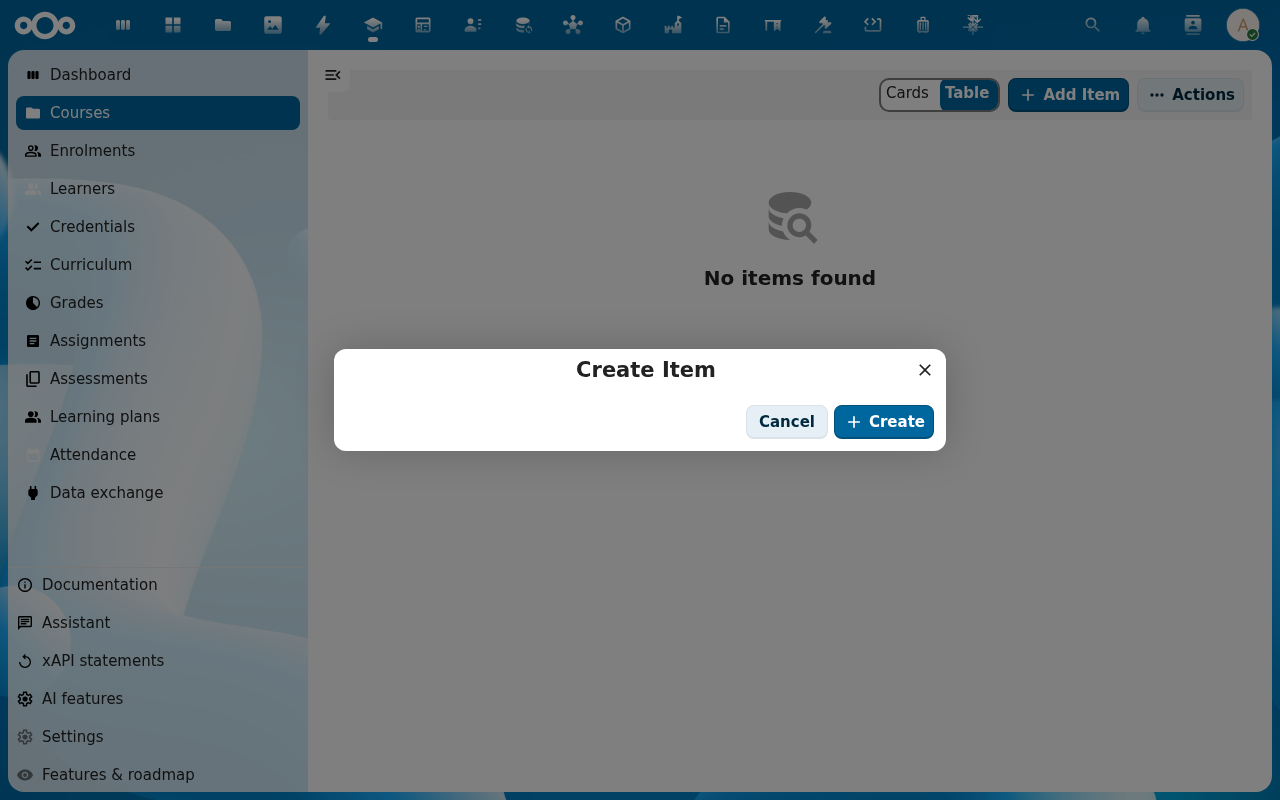
Fill in Title, Code and a short Description. Pick a Start and End date, Learniq uses these to drive enrolment validity, attendance windows and certificate dates. Set Status to Open if you want enrolments to start immediately; leave it on Draft otherwise.
-
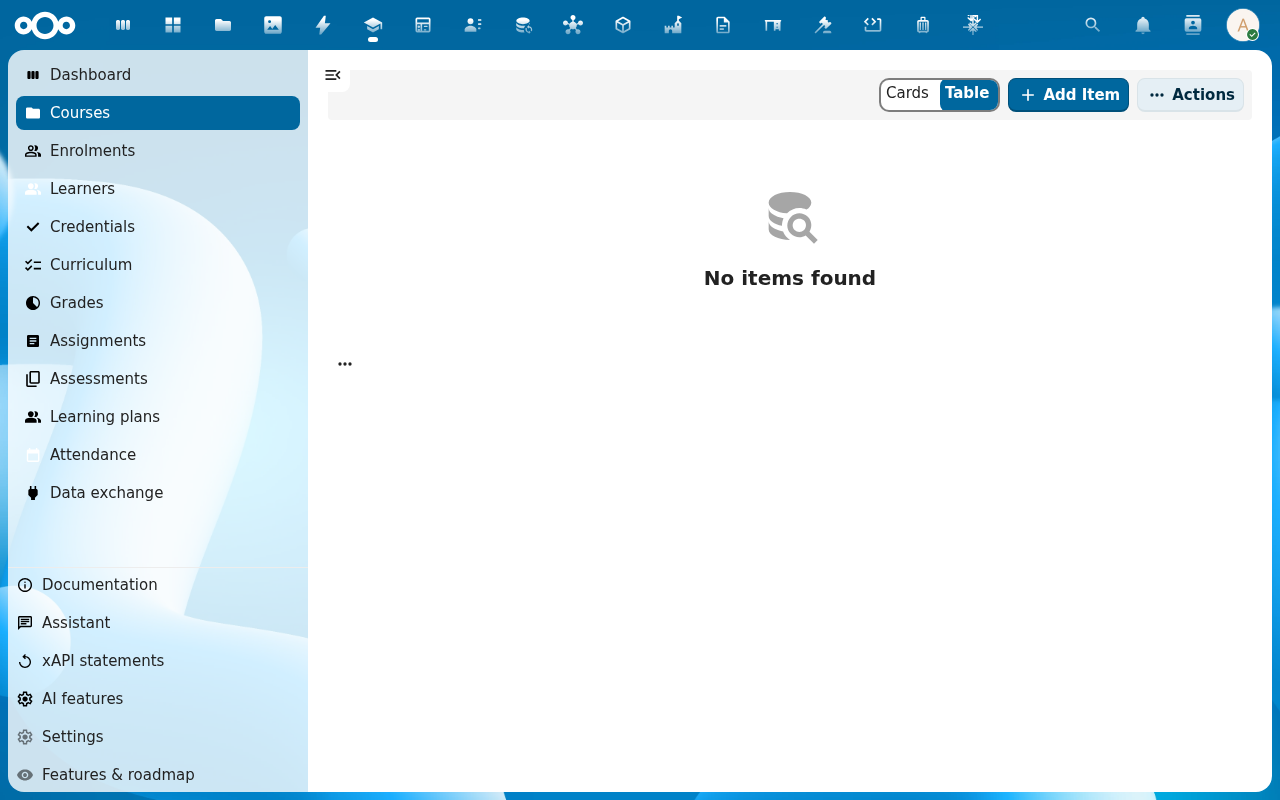
Click Save. The dialog closes and the new course appears in the Courses list.
-
Click the course row to open its detail page. The tabs across the top (Overview, Lessons, Enrolments, Assignments, Assessments, Grades, Attendance, Logs) are the workspace for everything else this guide covers.
Verification
The course is created when: it shows up in the Courses list with the title and status you set, and its detail page opens to Overview with no banner errors.
Common issues
| Symptom | Fix |
|---|---|
| Add Item opens an empty dialog with no fields | The Learniq register is not fully imported, an admin re-runs Settings → Registers → Re-import configuration. |
| Saving the course returns "end must be after start" | The end date is on or before the start date, pick an end at least one day later. |
| The new course is missing from the list after save | The list does not auto-refresh on every Nextcloud version, reload the page, or switch to the Table view and back. |
Compose the course structure and lesson content
Once the course exists, open Course builder for it (from the course's own detail page, or by
navigating to #/courses/<course-id>/builder) to arrange its modules and lessons and, for lessons whose
content type is Text, compose the lesson body itself:
- Course builder lets you add and delete modules (child courses) and lessons, and reorder either list
by dragging a row's handle or with the keyboard-operable "Move up" / "Move down" buttons on every row —
both write the same order, so keyboard-only use is never a second-class path. From here you can also
Save as template (captures the current module/lesson structure as a reusable
CourseTemplate) and New course from template (creates a brand-new, independent course tree from a saved template — the "clone for next year" workflow). - Lesson composer (opened via a lesson's Compose button in Course builder) builds a Text lesson's
body as an ordered list of blocks: rich text (Markdown), a media reference (picks or uploads a file that
becomes a
Material), a quiz (points at an existing assessment), an assignment reference, or an external (LTI) tool reference. Blocks reorder the same drag-and-drop + keyboard way as modules and lessons.
Packaged content lessons (video, SCORM, cmi5, quiz, LTI) are unaffected — those still play through their existing content reference; only the Text content type composes its body from blocks.
Share a course outside the school
Give the course a licence and an author first. Pick an open licence, such as CC BY-SA 4.0, if other schools may reuse it. Leave a lesson's licence empty to use the course licence.
Open Export course package and turn on Share outside the school. Confirm the two statements: the package holds no pupil names, photos, work or other personal data, and the school may share everything in it. The download leaves out your school's own links, file paths and access codes.
If sharing is refused, the page lists every reason, such as a missing author or a worksheet from a publisher's method. Your confirmation is recorded with your name, so your school leader can see what left the school.
To share with other schools straight away, choose Publish to the course store instead of Download. The same checks run first. Other schools then find the course in their Store and install their own copy, with your licence and your name on it. You see this button when your school lets you publish; by default team leads do.
Any teacher can install a course from the Store. You get your own copy to change as you like, and the original author and licence stay on it.
Reference
- Enrol students, the natural next step.
- Define your school structure, programmes and cohorts the course can sit under.