Manage Learniq settings
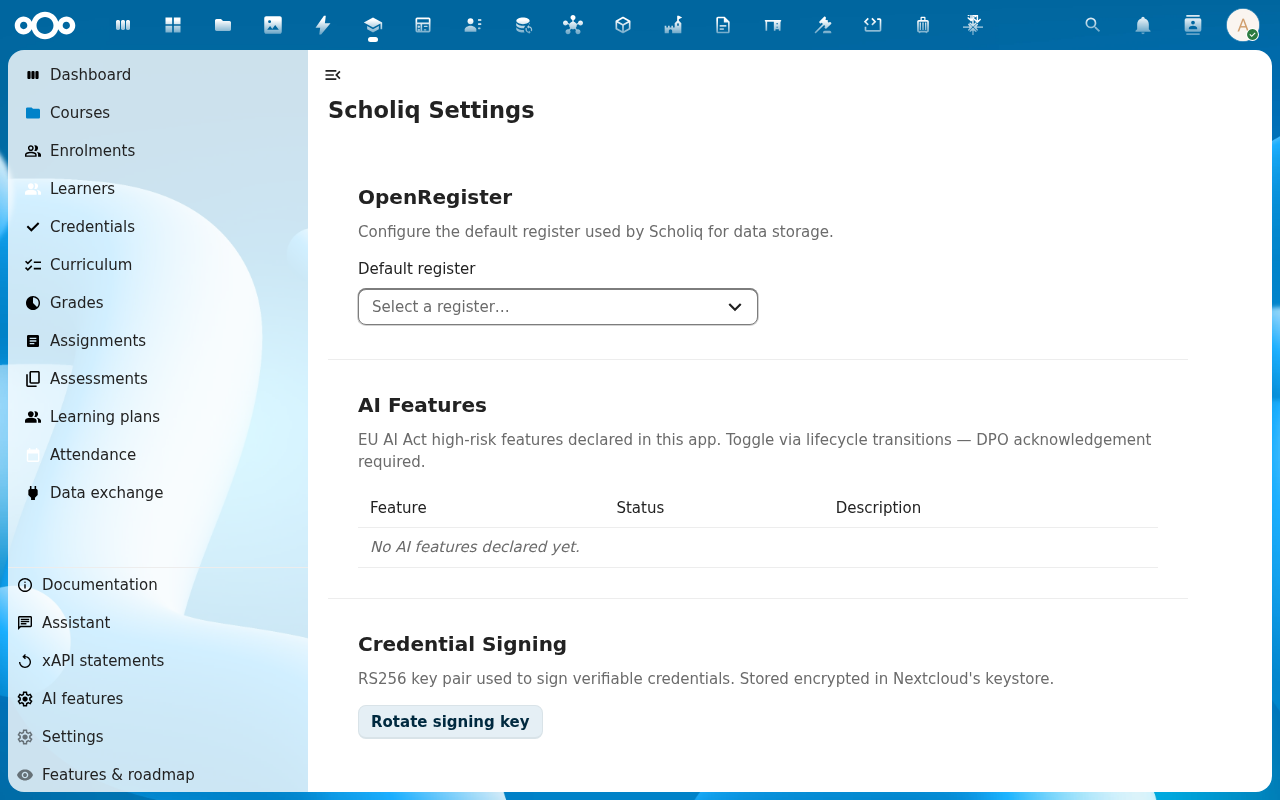
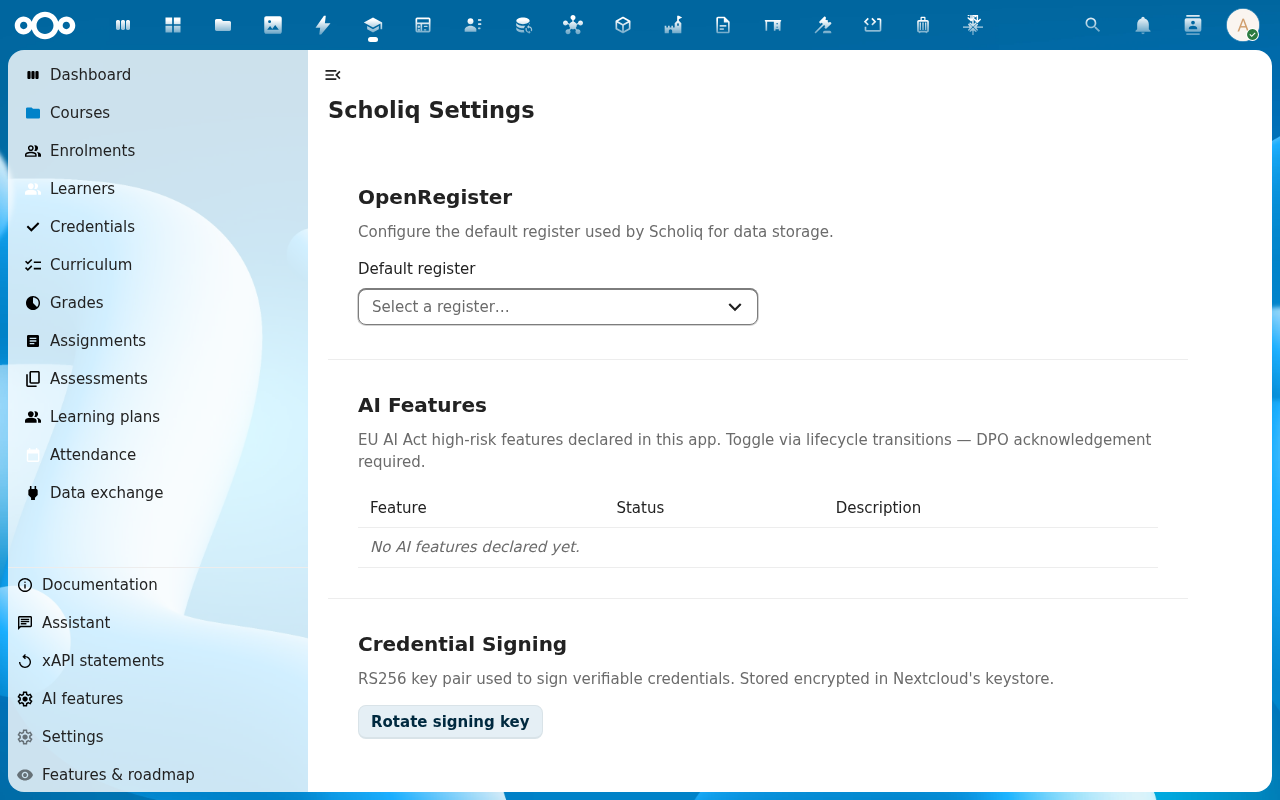
Learniq's settings page (in-app at /apps/scholiq/settings) is short on purpose. It surfaces only the configuration an admin needs to know about: the OpenRegister register that holds the data, the EU AI Act declarations, and the RS256 key used to sign credentials.
Goal
By the end you will have confirmed the right OpenRegister register is wired up, declared any AI features Learniq is using, and either generated or rotated the credential signing key.
Prerequisites
- Your account is in the admin group.
- The OpenRegister app is installed and enabled.
- A backup of the existing signing key if you are about to rotate it, Learniq keeps old keys for verification, but a deliberate, dated backup makes the GDPR/DPIA story easier.
Steps
-
Open Learniq and click Settings in the left navigation. The page is split into three sections: OpenRegister, AI Features, Credential Signing.
-
Confirm the Default register. This dropdown maps Learniq to the OpenRegister register that holds its schemas. On a fresh install it is pre-set to the
learniqregister imported by the app's repair step, leave it unless you are running multiple Learniq instances against the same Nextcloud.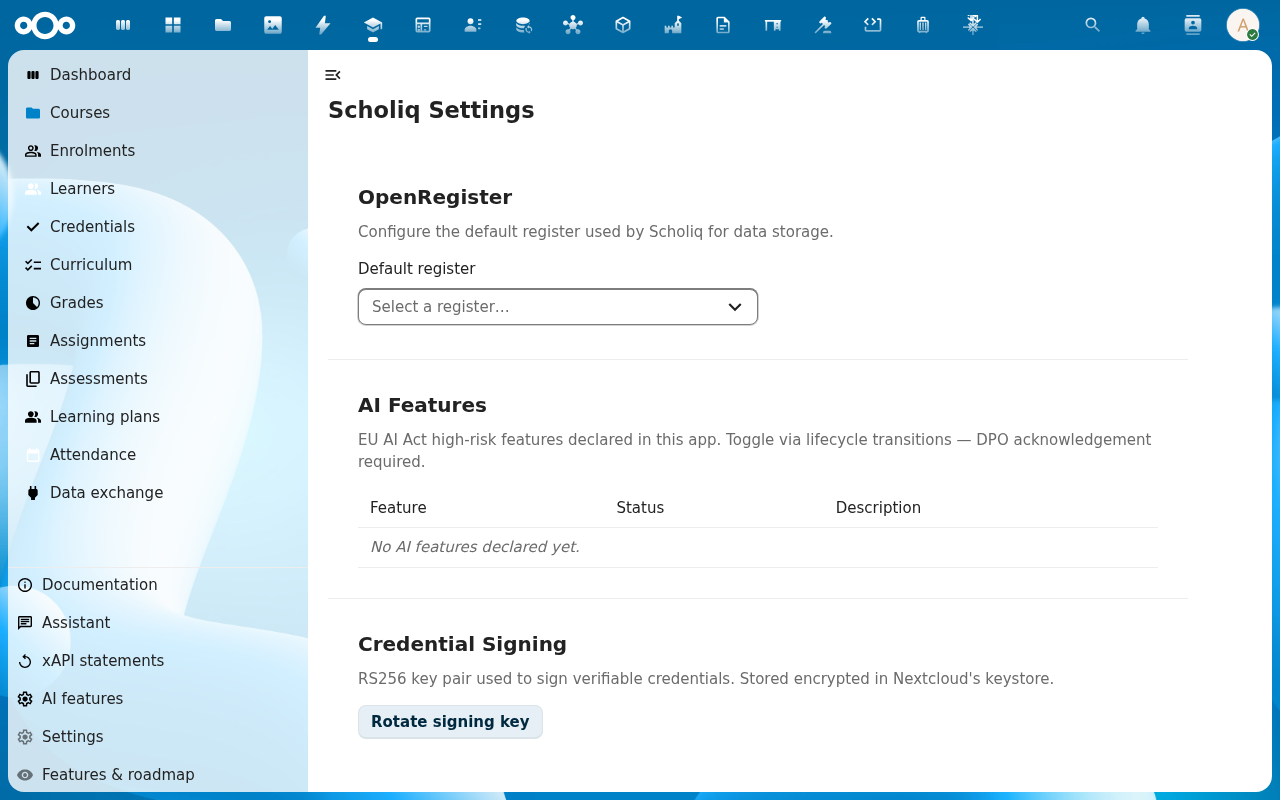
-
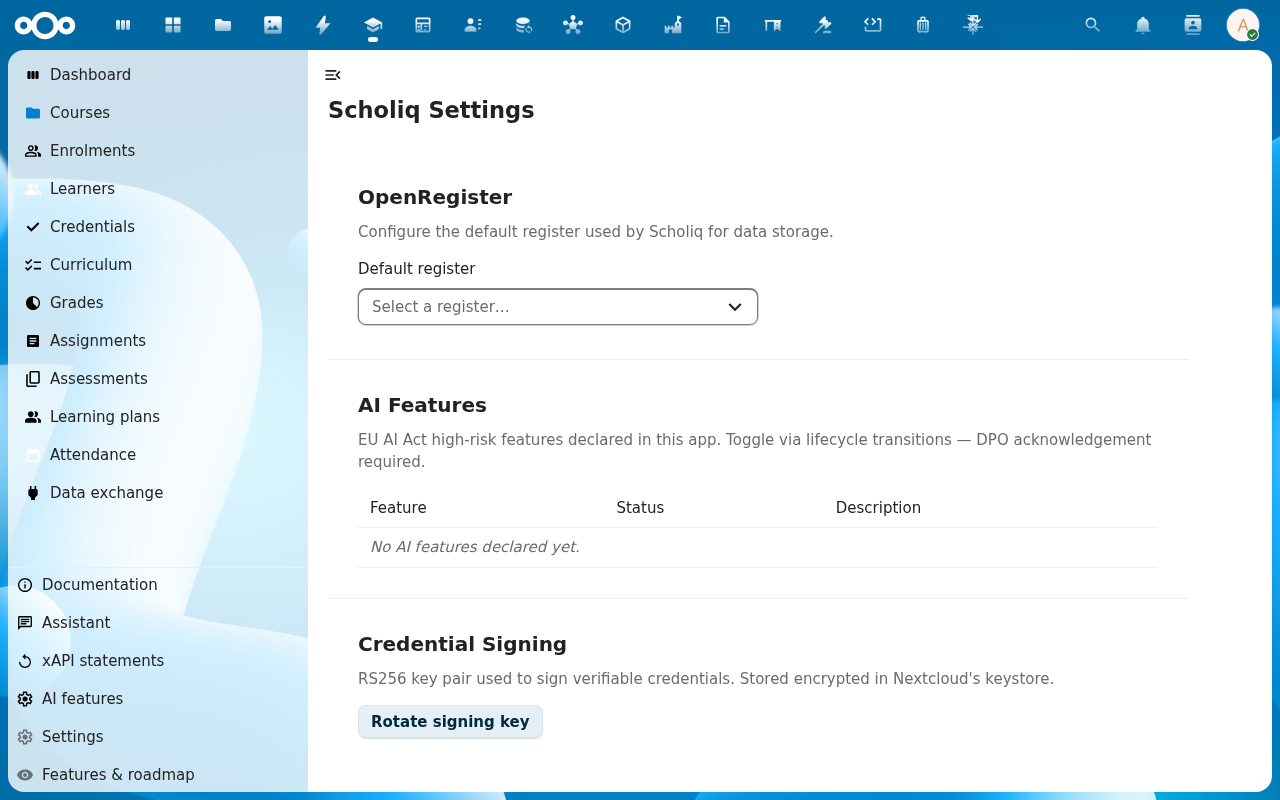
Scroll to AI Features. The table lists every EU AI Act high-risk feature Learniq has declared. On a fresh install it reads No AI features declared yet, when an admin enables an AI-backed feature (proctoring, plagiarism detection, automated grading suggestion) the table fills in and shows the lifecycle state, the responsible DPO acknowledgement and the data-classes-in-scope.
-
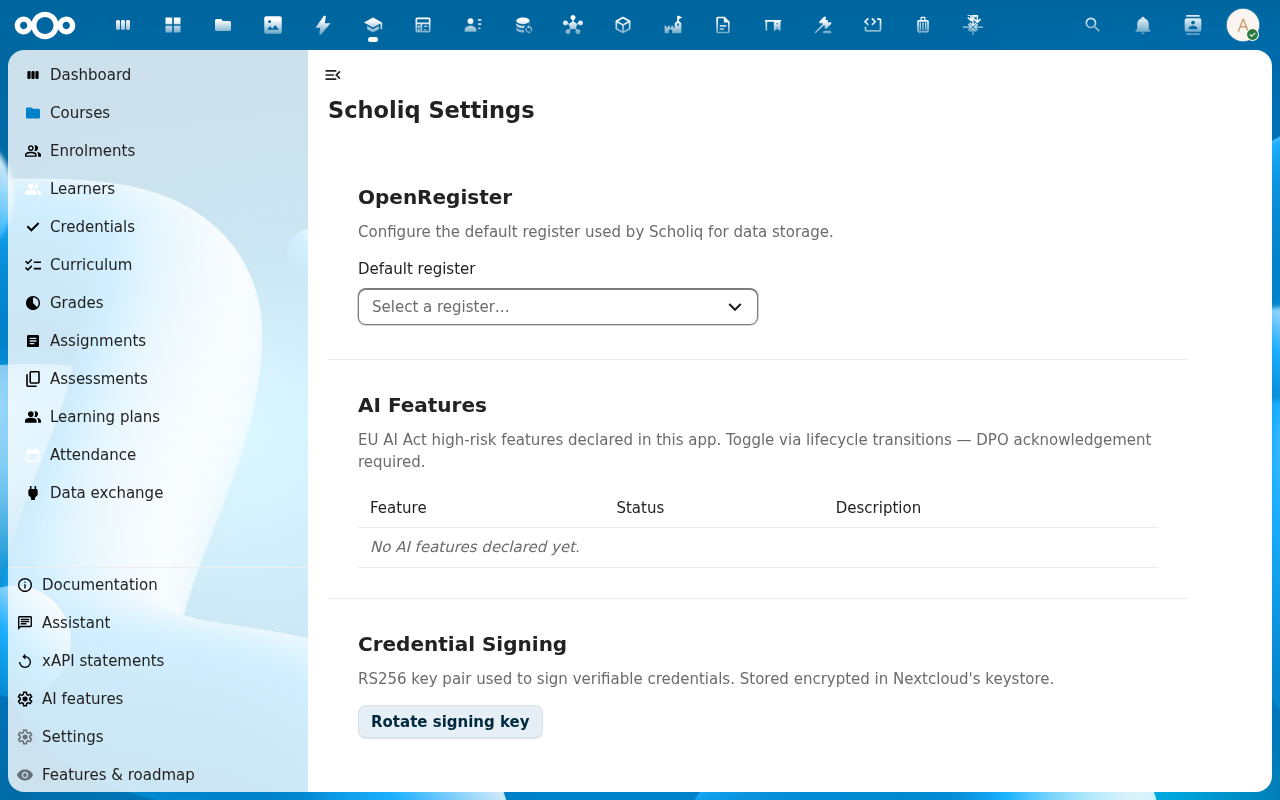
Scroll to Credential Signing. Click Rotate signing key the first time you set Learniq up, or whenever you need a fresh key (annual rotation, suspected compromise, post-DPO review). Learniq generates a 2048-bit RS256 key pair, keeps the old key for verification, and notes the rotation in the audit trail.
-
After rotation, every new certificate and every new audit pack signs against the new key. Confirm by issuing a test certificate (see Issue a certificate) and visiting its public verification URL.
Give the vertrouwenspersoon a private place for notes
Add your school's vertrouwenspersoon to the Nextcloud group confidential-counsellors. They then see Confidential notes in the menu. A note there is readable by its writer and by the colleagues they add to it, nobody else. School leaders, mentors, coordinators and compliance officers cannot open it.
Nextcloud admins can read every record, including these notes. Keep the admin group to IT staff who are not school leaders.
Connect the course store
The Store page lists courses other schools share. It needs a course registry: another learniq, for example your school board's. Ask its administrator for its address and for a token of an account in the instructors group there.
Then open Administration settings, Learniq, and fill in the Course store section:
- Registry address: the full address, such as
https://store.example.nl. Leave it empty to disconnect the store. - Register: leave it empty unless the registry's administrator names another register than
learniq. - Token: paste it once. The page never shows it again; it only says that a token is set. Type a new one to replace it, or tick Remove the stored token.
The same settings still work with occ, for scripts:
occ config:app:set learniq registry_url --value=https://store.example.nl
occ config:app:set learniq registry_token --value=YOUR_TOKEN_HERE --sensitive
Until the address is set, the Store page says no store is set up, and publishing tells the teacher to ask you.
Who installs and who publishes
Two rows under Action authorization decide it:
| Action | Default | What it allows |
|---|---|---|
| course-store.install | admin, instructors, team-leads | Install a shared course as the school's own copy. |
| course-package.share | admin, team-leads | Publish a course to the store, and download a share package. |
An update to this version sets these defaults once. It leaves a row alone when you had already changed it, and it never overrides a change you make later. Uploading a Canvas or Moodle package stays with course-package.import, which is admin only.
Publishing goes through OpenRegister's store connection, which keeps the token on the server. It needs an OpenRegister that can publish to a store; on an older one, publishing says so and sends nothing. A user outside the publish groups gets a clear refusal, and nothing leaves the school.
The Install and Publish buttons on the Store page follow these rows once the app runs a nextcloud-vue release with the store page change (nextcloud-vue #1268). Until then the Store page shows Install to Nextcloud admins only, while teachers can already install through the rows above.
Publishing goes through OpenRegister's store connection, which also keeps the token on the server. It needs an OpenRegister that can publish to a store; on an older one, publishing says so and sends nothing. Who may publish is the list of groups for course-package.share under Action authorization. A user outside those groups gets a clear refusal, and nothing leaves the school.
Verification
The settings page is healthy when: the Default register is set, the AI Features table reflects reality, and the Credential Signing section shows a Created at timestamp.
Common issues
| Symptom | Fix |
|---|---|
| Default register dropdown is empty | OpenRegister has no learniq register imported yet. Run php occ maintenance:repair on the host, or re-import it from Settings → Registers → Re-import configuration. |
| Rotate signing key errors "keystore locked" | The Nextcloud server-side encryption keystore is sealed, an admin unseals it from the Nextcloud admin pages, then retry. |
| Verifier returns Signature does not match for old certificates after rotation | The old key is missing from the keystore, restore it from the backup taken before rotation; Learniq logs the Public-key fingerprint of every key it has ever used in the audit trail. |
Reference
- Run a compliance-training audit, uses the same signing key.
- Issue a certificate, same key, learner-facing flow.
- Set up your school structure, the structure the settings page assumes you have.