Take attendance
Attendance in Learniq is per session, one row of the timetable for a course or cohort. Marks roll up automatically to the learner's attendance record and into compliance reports.
Goal
By the end you will have taken attendance for one session, marked each learner as Present, Absent, Late or Excused, and seen the result on the learner's profile.
Prerequisites
- A course with sessions (lessons) scheduled on it. Sessions live under the course detail page → Lessons tab.
- Enrolments on the course (see Enrol students).
- Optional: a cohort timetable so the same session can pull learners from several courses.
Steps
-
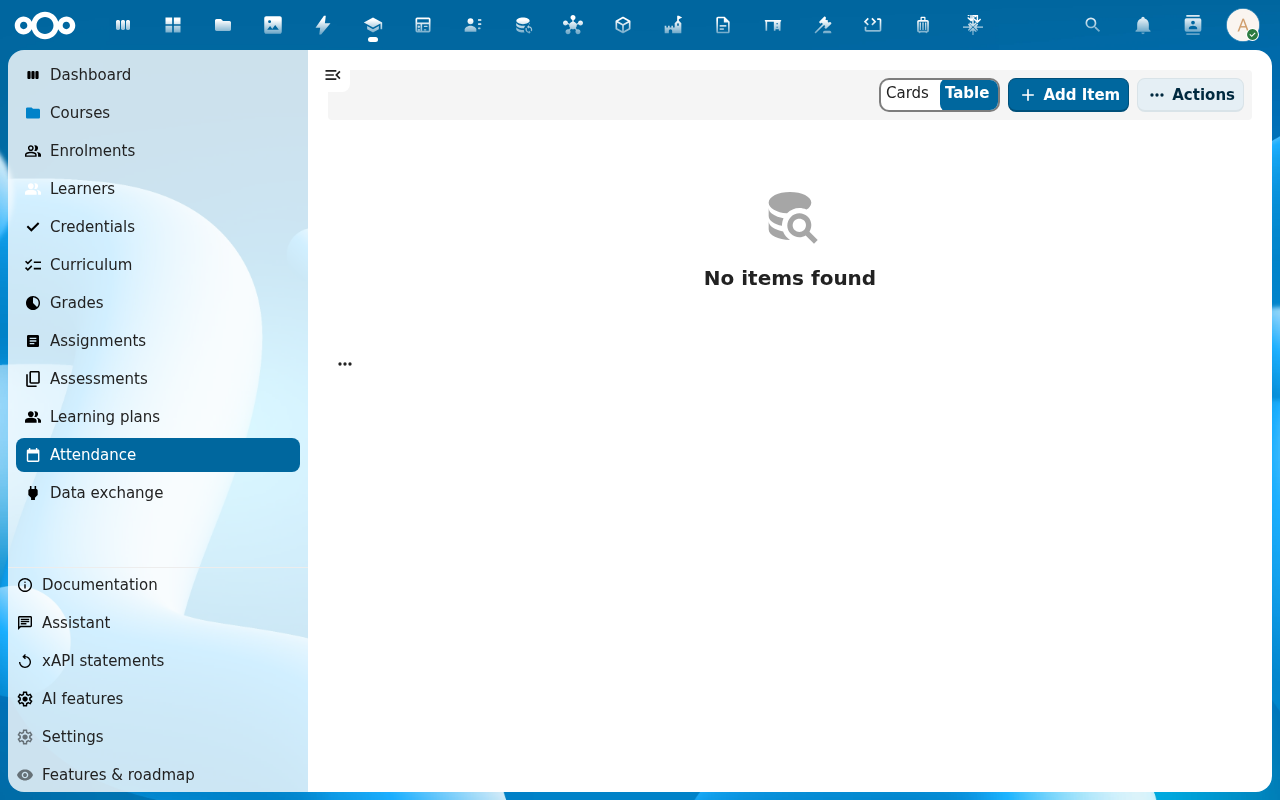
Click Attendance in the left navigation. The list shows every session today, sorted by time.
-
Pick the session you are teaching. The Mark attendance view opens with one row per enrolled learner.
-
For each learner, click Present, Absent, Late or Excused. Add a short note where it helps (lateness reason, excused-by reference, etc.).
-
Click Save. The session moves to Recorded and the dashboard tile Open attendance flags drops by the count of absences you flagged.
-
To confirm a single learner's record, open Learners → <learner> and switch to the Attendance tab. The row you just marked is at the top.
Verification
Attendance is complete for the session when: the session shows status Recorded in the Attendance list, no learner row is left on Unmarked, and the totals on the learner profile updated.
Common issues
| Symptom | Fix |
|---|---|
| The session is missing from today's list | The course timetable does not have a session for today, or it is outside the course's start/end window, add or fix it under the course's Lessons tab. |
| The learner you expected is not on the roster | They have no Active enrolment on the course, fix the enrolment dates under Enrol students. |
| You marked the wrong row | Click the same row again, pick the right mark and save, Learniq keeps the latest mark plus an audit trail (every change shows up under the session's Logs tab). |
Absences reported in the portal
Pupils and parents can report an absence in the school portal. The report lands in your list of absence reports, already linked to the right pupil and school.
- A pupil reports their own absence. The pupil is recorded as the one who reported it.
- A parent reports for their own child only. A parent who is not on the child's profile gets an error, and nothing is saved.
- Each report records how strongly the sender signed in: basic for a pupil, substantial for a parent.
Approve or reject the report as usual. When you enter a report yourself, fill in the pupil, who reported it and the school, or learniq refuses to save it.
Learners check in themselves
Instead of calling the roll you can let learners check in with a code.
- Open the register of the lesson and choose Open self check-in. For an online lesson choose Open check-in for an online lesson: you get a link to share instead.
- Show the code on the board. It changes every thirty seconds, so a photo sent to a friend outside the room stops working.
- Learners open Check in in learniq, or check in from the portal, and type the code. A learner of the lesson's group is marked present, or late when it is more than five minutes after the start of the lesson.
- You see the number of check-ins on the board. Choose Close check-in when you are done; it also closes by itself after fifteen minutes or at the end of the lesson.
A self check-in shows a small checked in label in the register. You can still change it like any other mark; once you change it and save, it counts as your mark. A check-in never overwrites a mark you already saved.
Reference
- Submit an excuse, the learner-side equivalent (the Submit excuse button on their attendance row).
- Compliance audit pack, how attendance feeds into the audit report.