Issue a certificate
A Learniq certificate is a verifiable credential, a JSON document signed with the school's RS256 key, with a public verification URL anyone can hit to confirm the grade is genuine.
Goal
By the end you will have issued a certificate to one learner for a completed course, downloaded the PDF, and verified it against the public verification URL.
Prerequisites
- A Final grade in status Published for the learner on the course (see Grade work and give feedback).
- The signing key generated under Manage Learniq settings → Credential Signing → Rotate signing key.
- The learner's email or DID on their Learner Profile, so they receive a notification when the certificate is issued.
Steps
-
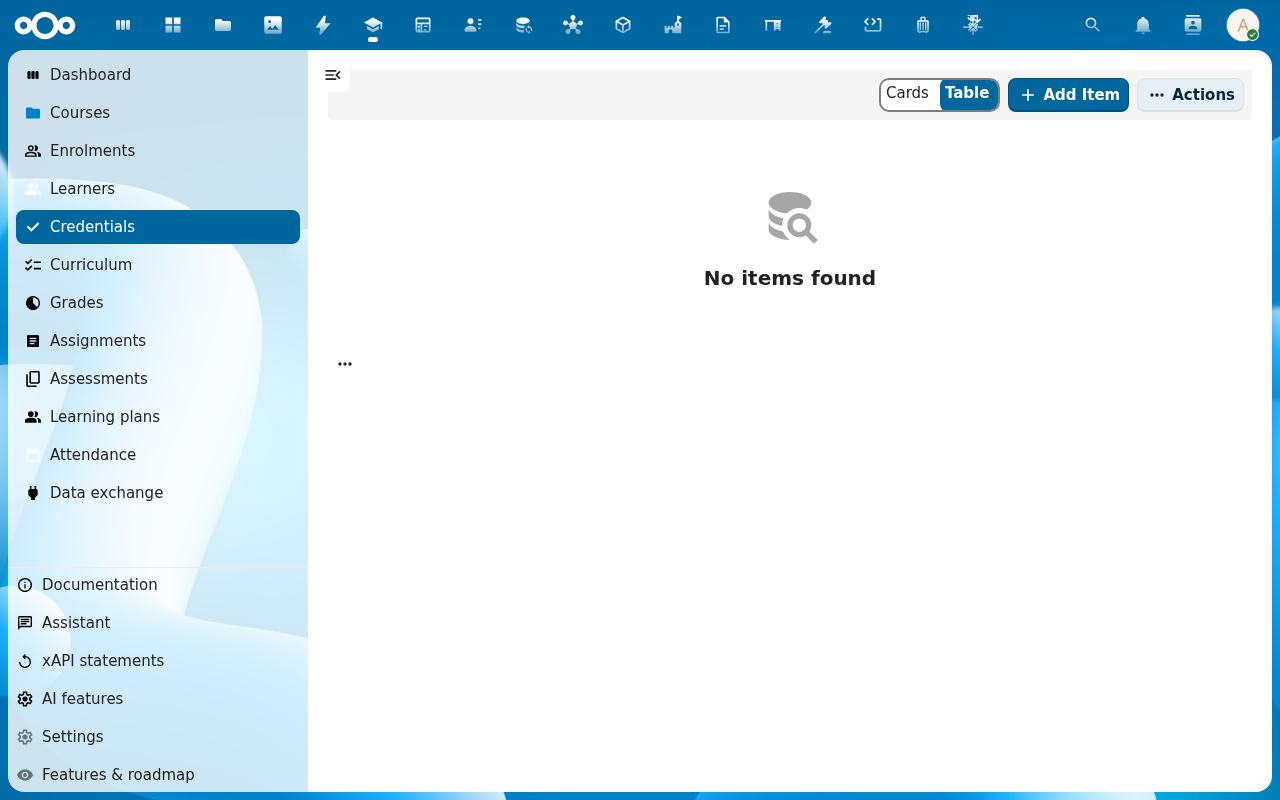
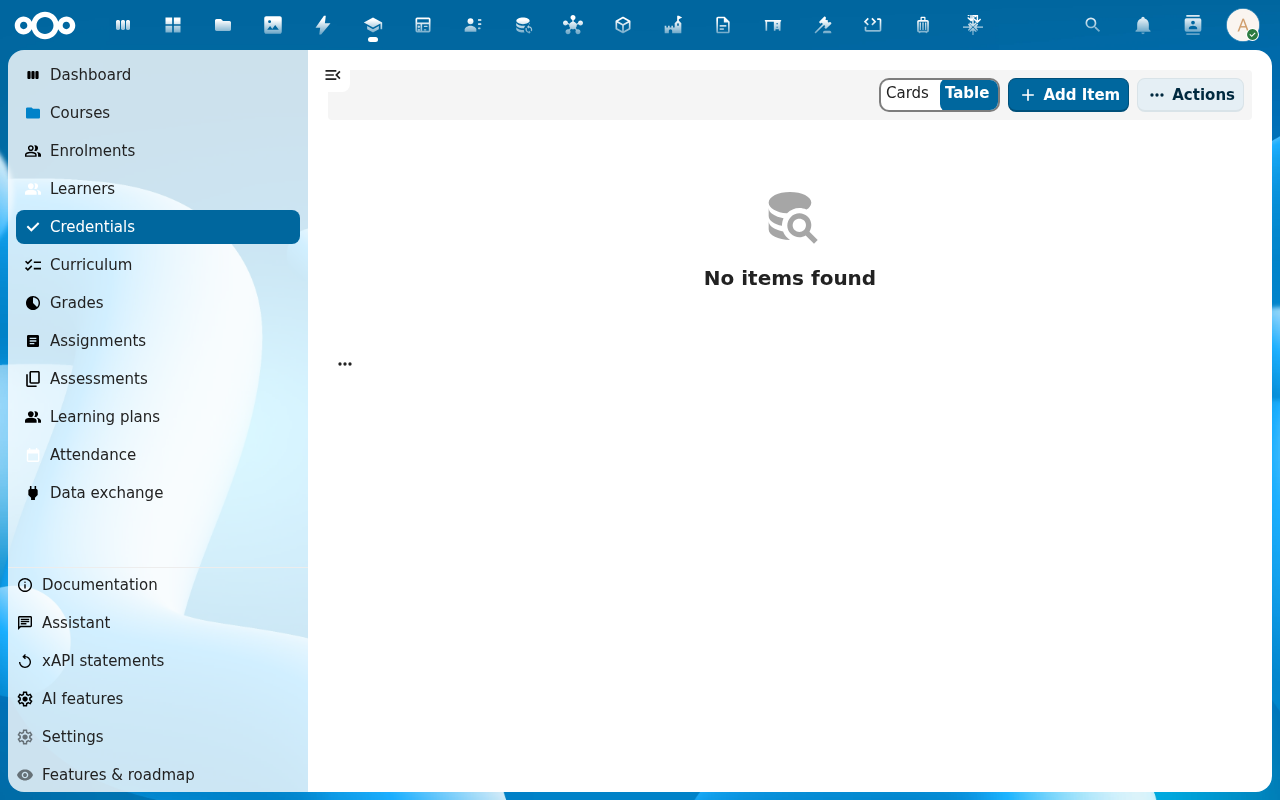
Click Credentials in the left navigation. The list shows every certificate ever issued, with status (Issued, Revoked, Expired) and the public verification URL.
-
Click Add Item. Pick the Course and the Learner. Learniq pre-fills the title (course title + "Certificate of completion"), the issue date and the final grade.
-
Pick a Template, Learniq ships a default school-letter template; admins can add more under Curriculum → Templates. Click Issue. Learniq signs the credential and stores it.
-
Open the new credential row to get the PDF and the public Verification URL. The learner receives both by Nextcloud notification.
-
To confirm the verification flow, open the verification URL in a private browser window. The Learniq verifier page shows the credential's content, the issuing institution, the issue date and a Valid badge.
Verification
The certificate is issued when: the row shows status Issued with a signature timestamp, the learner sees it on their home view, and the verification URL returns Valid.
Common issues
| Symptom | Fix |
|---|---|
| "No signing key configured" on Issue | An admin still needs to generate the RS256 key, go to Manage Learniq settings → Credential Signing → Rotate signing key. |
| Verifier page shows Signature does not match | The key was rotated after the certificate was issued and the verifier is checking against the new key. The old key is kept by Learniq for verification, wait a minute for the cache, or contact the admin. |
| You need to revoke a certificate (typo, wrong grade) | Open the credential row and click Revoke. The status changes to Revoked and the verifier returns Revoked with the reason you give. |
Europass version
Every certificate, diploma or microcredential learniq issues also gets a Europass version: a European Digital Credential the learner can keep in their Europass profile. It carries the learner's name, the course, its credits and level where known, and your school or company as issuer, and it is signed with the same key as the certificate itself. It never carries a date of birth or a national identifier.
- The learner, and HR and compliance officers, open the certificate and choose Download for Europass.
- For a certificate issued before this feature, an HR or compliance officer chooses Create Europass version once. A revoked certificate gets none.
- An employer or school can check a Europass file on learniq's verification address for the certificate: learniq answers valid or not valid, and never shows the file's content.
- The issuer carries your KvK number when you set it in the app configuration (
europass_issuer_identifier), otherwise the BRIN of your school record.
Reissue every certificate of a course
When a certificate has to change for everyone who has it (a new wording a regulator asks for, a corrected course name, a new issuer name), an HR or compliance officer reissues them in one go.
- Open the course and choose Reissue certificates in the actions menu.
- You see how many issued certificates will be rebuilt, and how many revoked or expired ones are left as they are. Give a reason and confirm.
- learniq rebuilds and signs every issued certificate again in the background, the Europass version too. Each keeps its number, issue date and expiry, and its history shows when, by whom and why it was reissued.
- Every learner gets a notification. A certificate that was in a learner's EUDI wallet is marked so you can offer the new version.
Reference
- Track learner progress, how the certificate fits into the learner's overall record.
- Compliance audit pack, issued certificates are listed in the audit report.